Desktop
The desktop app is a native client that runs the AgentTeams web app and adds screen-region capture, annotation, native notifications, updates, and pinned project tabs. It supports macOS and Windows.
When to use it
Use the desktop app when you need more than the browser:
- capture part of the screen and send it with a runner request
- annotate a captured image before handing it to an agent
- keep multiple projects pinned in a local sidebar
- combine web workflows with OS-level shortcuts, notifications, and updates
Main screen
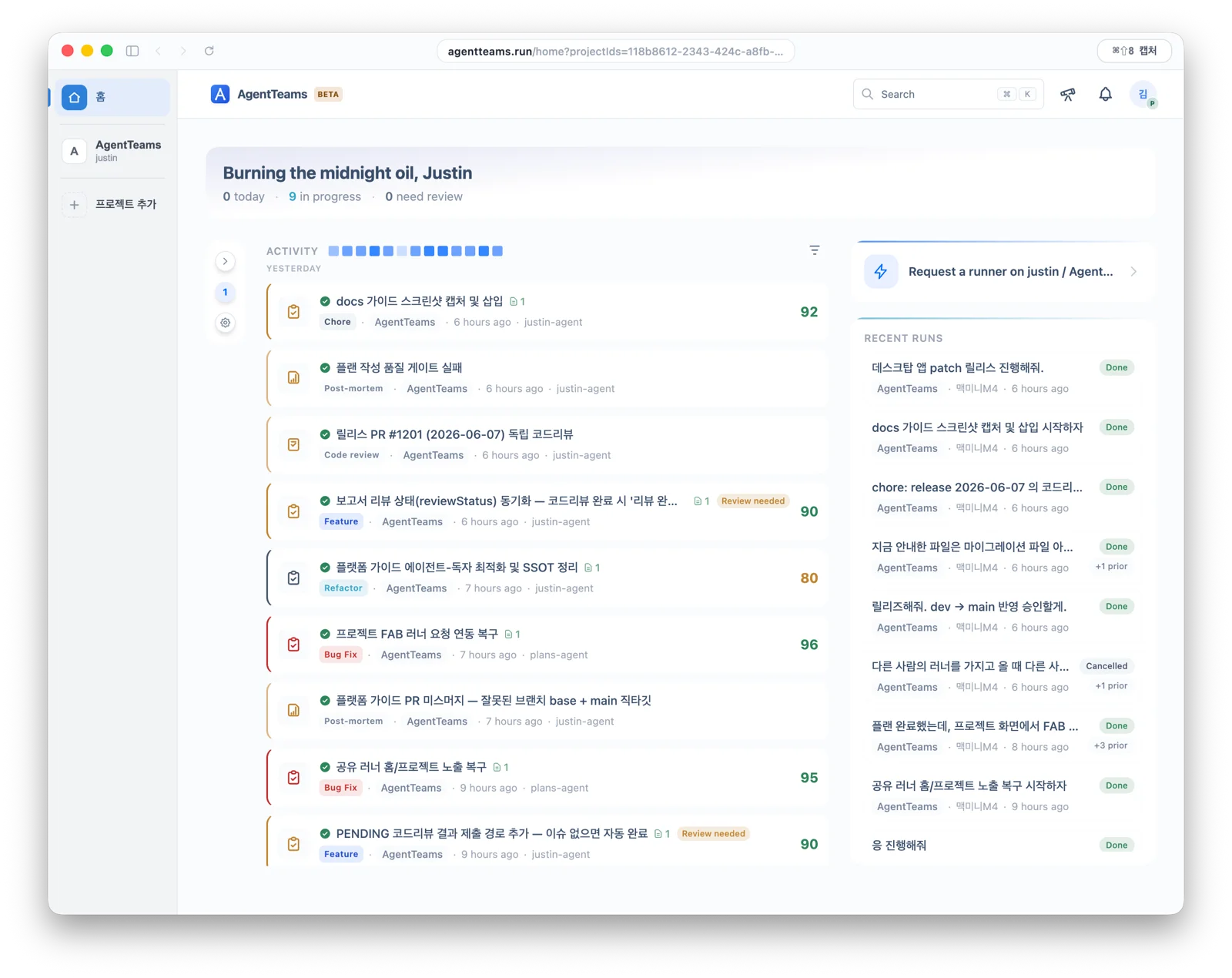
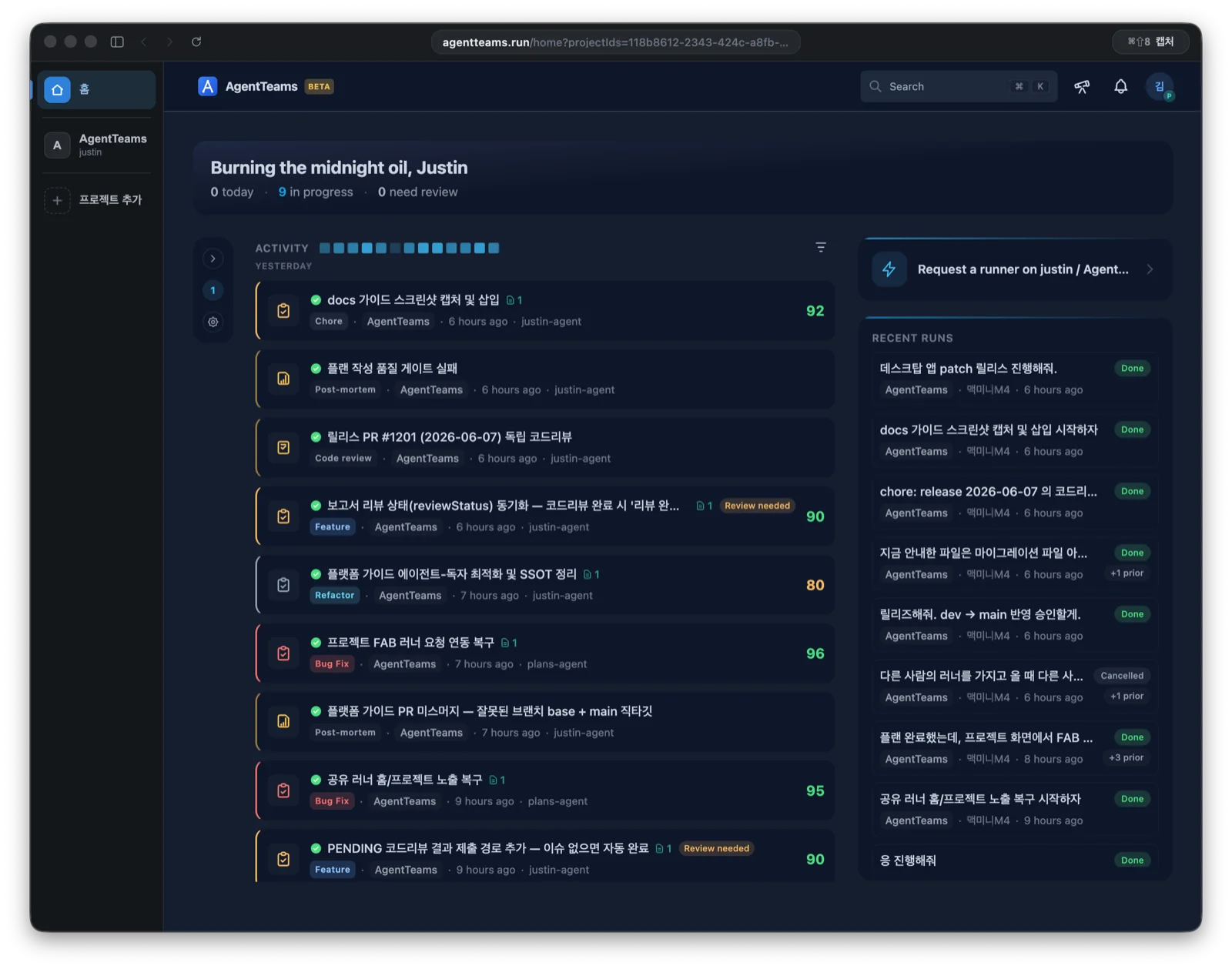
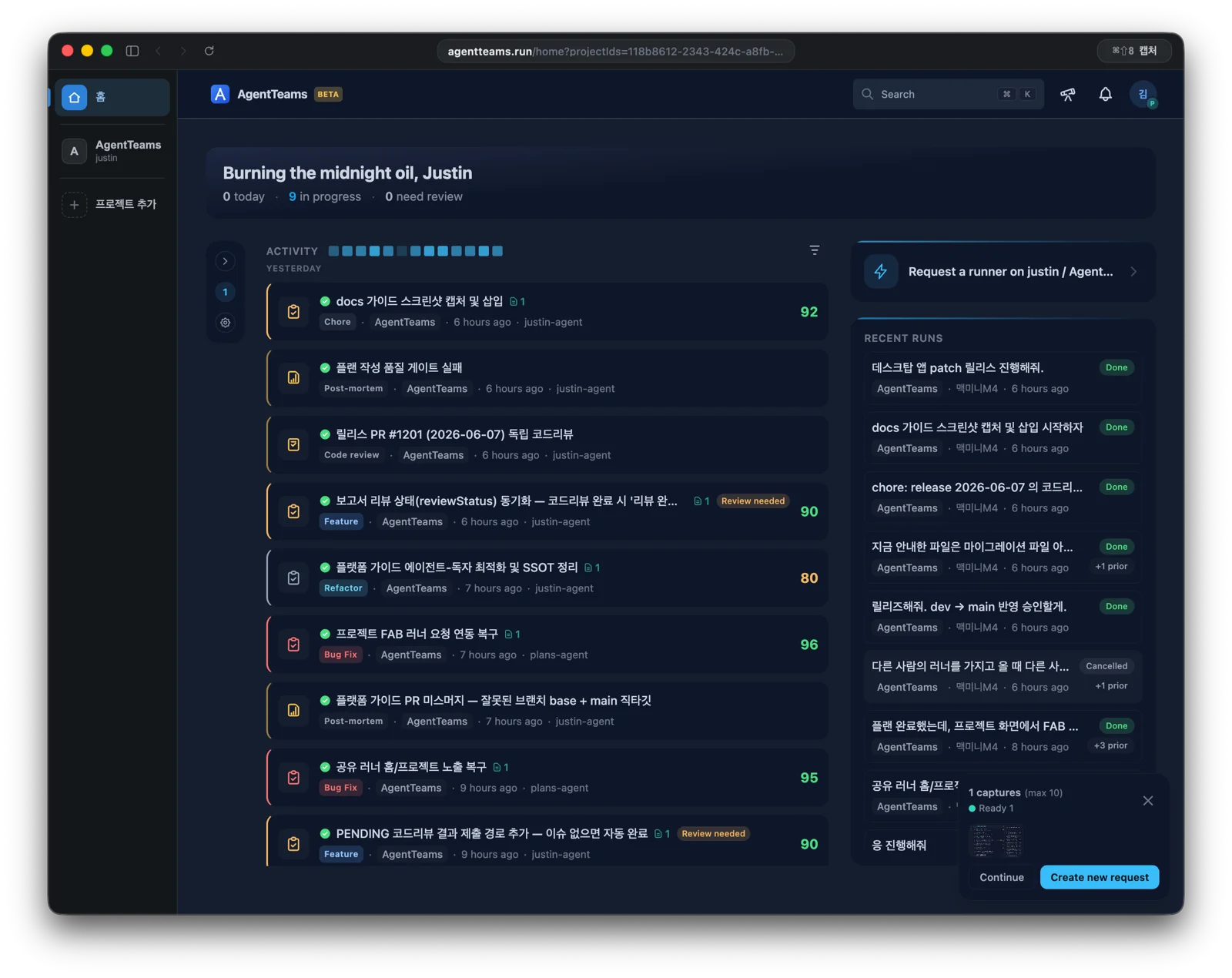
The desktop app runs the web app as-is and adds a project sidebar on the left plus screen capture.
Project sidebar
The left sidebar shows Home and pinned projects. When you open a project from the web home page, it is added to the pinned list, and you can switch between pinned project tabs without returning to the full list.
Sidebar width and visibility, pinned projects, and the last active tab are saved and restored on the next launch. On narrow windows, the sidebar auto-hides to prioritize the web area.
Screen capture and annotation
The default capture shortcut is ⌘⇧8 on macOS and Ctrl+Shift+8 on Windows.
Capturing a region with the shortcut opens the editor first. Annotate the capture and write a prompt.
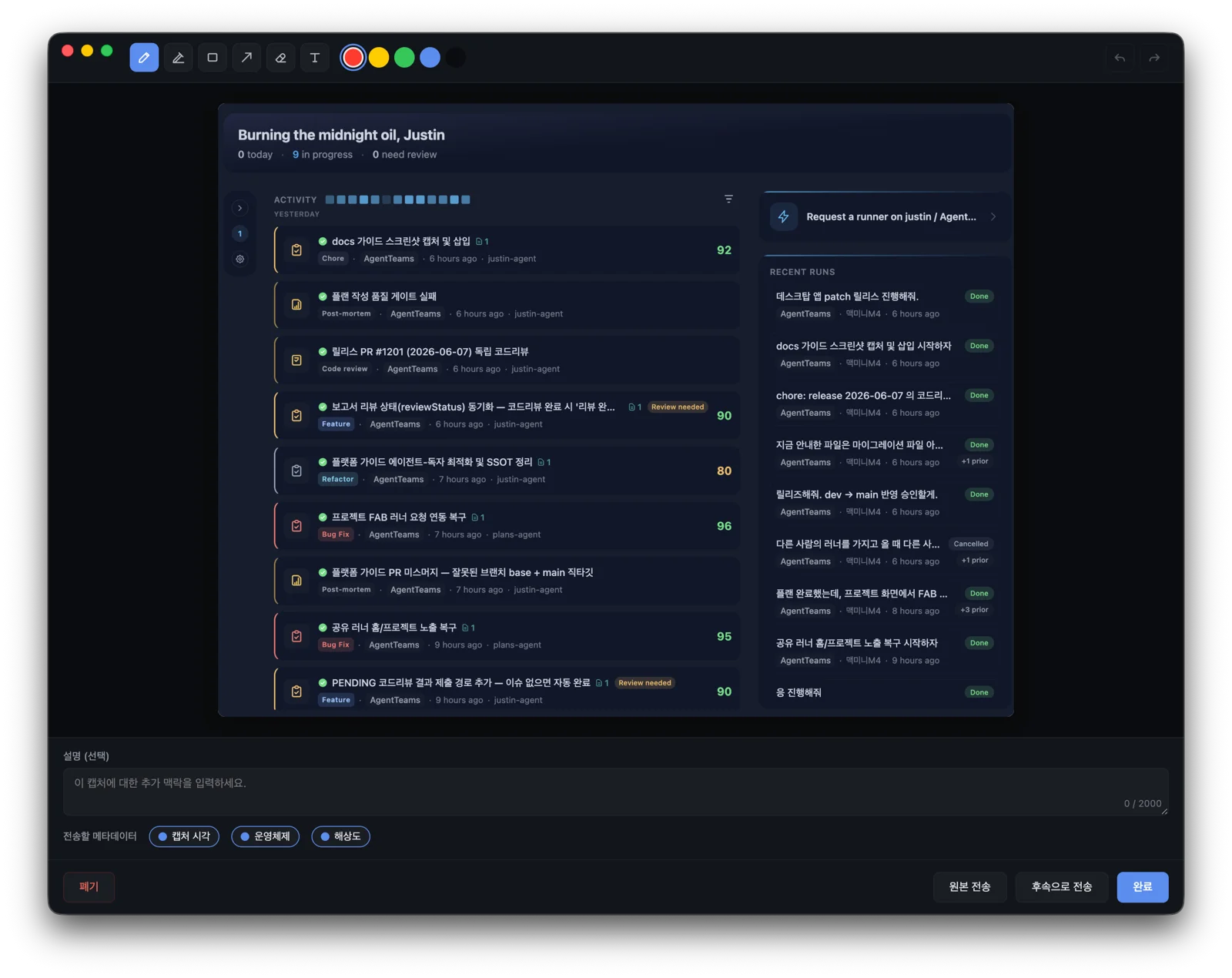
The capture editor supports dark mode only.
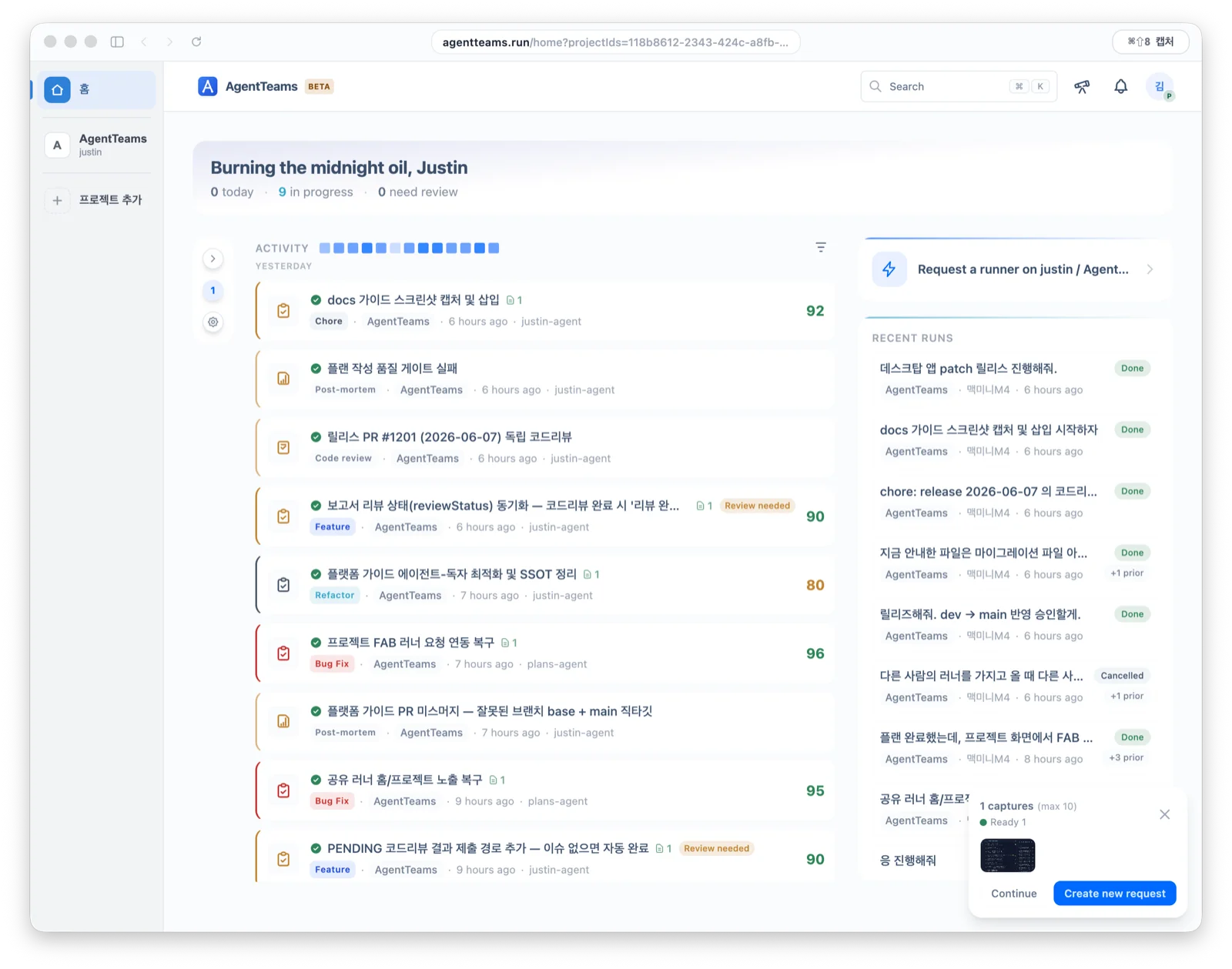
The capture panel in the bottom-right then lets you keep capturing (Continue) or create a runner request from the collected captures (Create new request).
Local agent — pilot
The local agent button in the top bar opens a panel on the right. You can explicitly choose between two engines:
- Delegated run — runs Claude Code already installed on this computer using its existing login and subscription. It does not ask for a model API key; billing follows the user’s subscription.
- Direct run — Electron main calls the Anthropic Messages API with the API key stored by the user. Billing follows the user’s Anthropic Console credits.
A direct run conducts the conversation and looks up AgentTeams context without installing Claude Code or external executables such as agentteams, node, npm, or npx.
Where the key is stored
The Anthropic API key entered for a direct run is encrypted with OS secure storage (macOS Keychain / Windows Credential Manager) and stays on this computer only. Its original value never leaves Electron main or reaches AgentTeams servers, and if it appears in run output it is automatically replaced with ***. A delegated run does not require or use this key.
Where OS secure storage is unavailable, the key is not written to disk and is kept for the current session only. The panel says so explicitly, and you will need to enter the key again after quitting the app.
Setup
- Choose an engine — Select the delegated run (Claude Code) or the direct run (Anthropic API). The delegated run is the default when Claude Code is detected, and you can switch at any time.
- Register an API key — The Anthropic API key field appears only while the direct run is selected.
Verify and savestores only a valid key. - Connect context — Once the panel’s AgentTeams connection credential is configured, a direct run uses the read-only tools bundled with the app to query the current project’s context directly, with no external CLI involved. For a delegated run, use the “AgentTeams MCP registration” detection flow to inspect external-agent MCP targets.
- Run — Enter an instruction and press
Run; output streams live. Only one run can be active at a time, andCancel runstops it.
For the MCP server and its read-only tools, see MCP integration.
The tool profile a delegated run uses
Every delegated run attaches an AgentTeams MCP server scoped to the project you are currently viewing. That server runs with the minimal profile — only agentteams_search, agentteams_plan_get, and agentteams_document_get are exposed.
Claude Code defers MCP tool definitions until they are needed, so on that engine minimal saves little: measured on 2026-08-05 with Claude Code 2.1.220, the same prompt cost 22,563 input tokens with minimal and 23,100 with full — 537 tokens, not the 10,906 tokens the full definitions occupy. The panel still defaults to minimal because the same server definition is also handed to engines that load definitions eagerly (the Codex MCP feature list documents no host-side progressive discovery), and because deferral depends on the Claude Code version installed on this computer.
- This profile applies to desktop delegated runs only. It does not modify any registration you made with
agentteams mcp install. - If an external agent needs a wider profile, choose it separately with
--tool-profilein that registration. See Tool profiles. - A direct run uses the read-only tools bundled with the app and exposes the same three upfront.
- Requires
@agentteams/cli0.1.91 or later. Older CLI versions do not know theminimalprofile, so the desktop app leaves the profile unset and they start withfull.
Prerequisites
- A delegated run requires Claude Code to be installed and signed in with a subscription account. The panel reports executable and configuration detection separately.
- A direct run only requires an Anthropic API key. No external CLI installation or
PATHsetup is needed. - Only MCP target detection for delegated runs needs the
agentteamsCLI; see CLI install.
Current scope
- Delegated runs support Claude Code, and direct runs support the Anthropic Messages API.
- The app only detects MCP targets. Automatic apply remains unavailable until a secure credential helper can avoid copying the safeStorage key into an ordinary config file.
- Run history stays on this computer and is never uploaded to AgentTeams servers.
- The packaged direct-run path is automatically checked with an empty
PATHon macOS arm64 and Windows x64.
Platform notes
| Item | macOS | Windows |
|---|---|---|
| Screen permission | Required. The app opens System Settings if permission is missing. | No separate permission prompt. |
| Default shortcut | ⌘⇧8 | Ctrl+Shift+8 |
| Full-screen overlay | Always-on-top and visible across workspaces. | Can be hidden by some full-screen apps. |
After changing macOS screen-recording permission, restart the app.
Install and updates
The app ships as a macOS .dmg and a Windows .exe. Install the released build for your platform; when a new version is available, the app prompts you to update.
Current caveats
- Capture depends on OS permissions and shortcut availability.
- Capture images are temporary and should not be treated as long-lived files.
- The desktop app does not replace the web app; it adds local capture and project-tab ergonomics around it.