Plans
A Plan is a tracked unit of work that defines the intent and scope of a task. Use plans for work that spans multiple steps or needs review and verification. The agent drafts a plan; once a human reviews and approves it, execution begins.
Plan types
Every plan has a type that classifies the nature of the work.
| Type | Description |
|---|---|
FEATURE | New functionality or capability |
BUG_FIX | Fix for a defect or unexpected behavior |
ISSUE | Investigation or issue resolution |
REFACTOR | Code restructuring without behavior change |
CHORE | Maintenance, config, docs, or other housekeeping |
Plan status flow
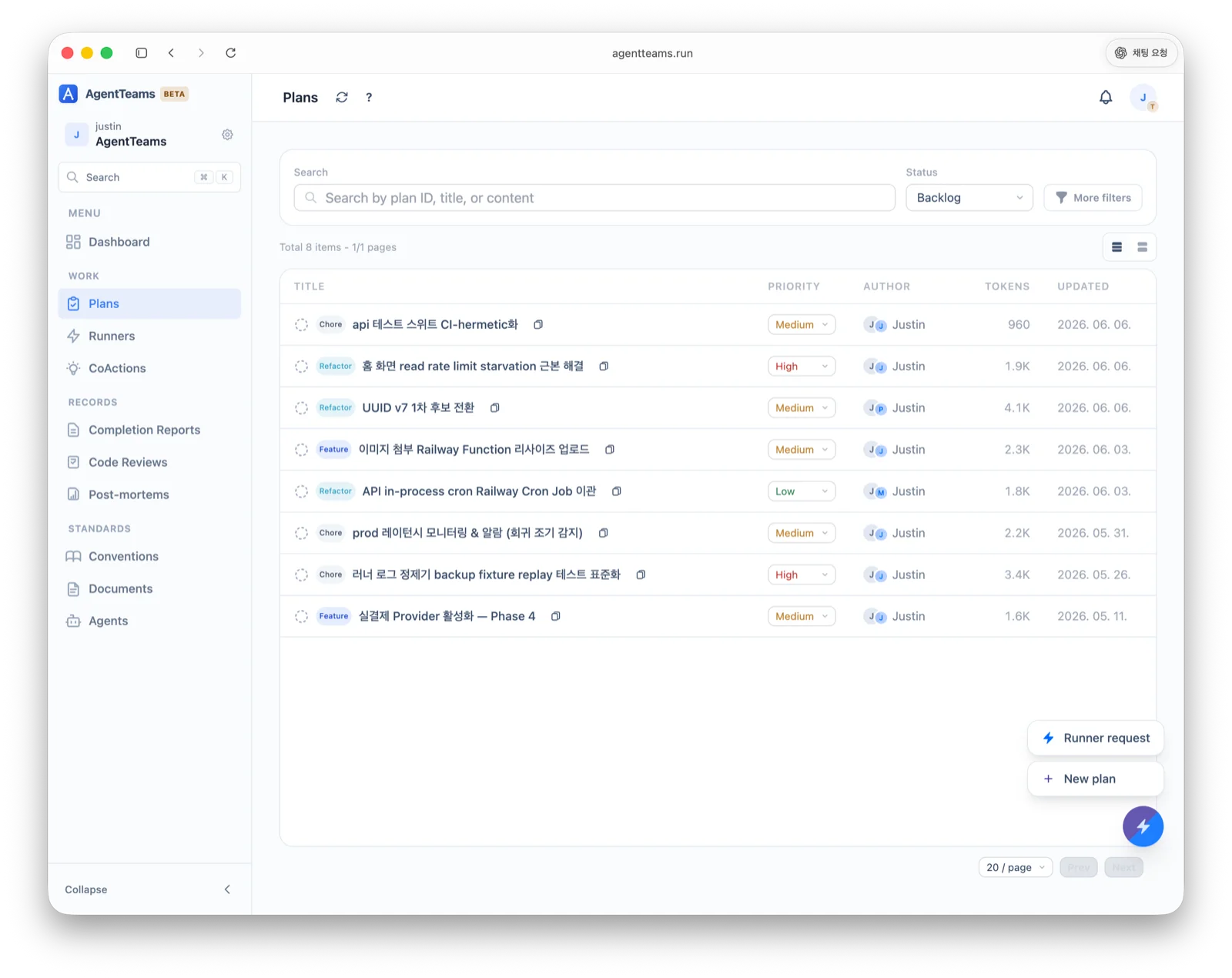
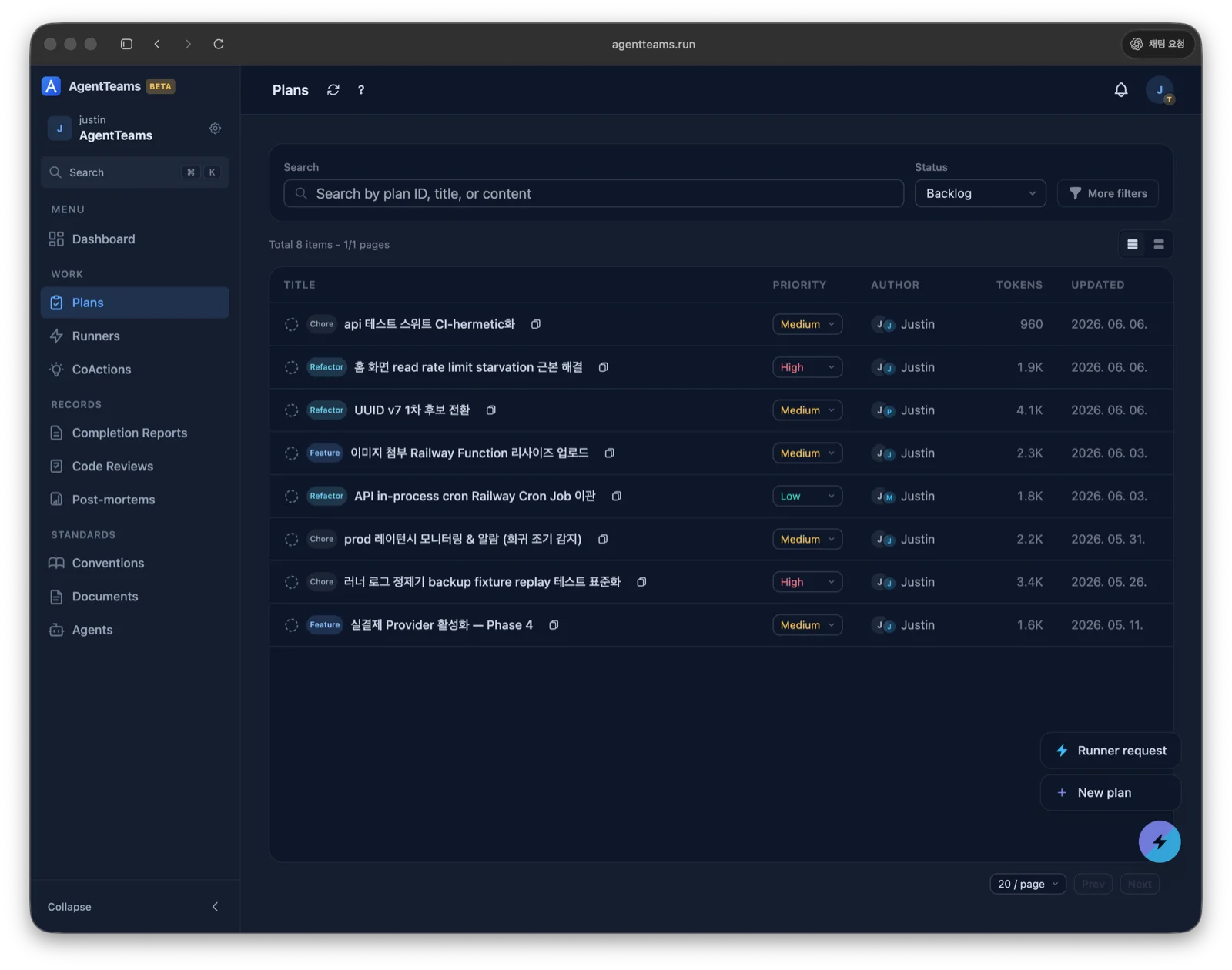
A plan always starts as BACKLOG and moves through defined transitions only.
| Status | Meaning |
|---|---|
BACKLOG | Written, not started yet |
TODO | Scheduled to start |
ASSIGNED | Assigned to a specific agent |
IN_PROGRESS | An agent is working on it |
BLOCKED | Blocked by an external factor |
DONE | Complete, with a completion report linked |
CANCELLED | Cancelled (terminal state) |
Active statuses (
BACKLOG,TODO,ASSIGNED,IN_PROGRESS,BLOCKED) can transition toCANCELLED;DONEcannot.DONEcan be reopened toTODOwhen needed, andCANCELLEDis terminal.
Using it with AI agents
Ask your AI agent something like:
- “Create a Plan for implementing this feature”
- “Outline the scope and approach, then register it as a Plan”
The agent drafts a plan defining the work intent and scope. Once a human reviews and approves it, execution begins.
Common scenarios
- Plan a new feature — capture what to build and how as a
FEATUREplan, then execute after approval. - Track a bug fix — create a
BUG_FIXplan, assign it to an agent, and review the result in the completion report. (e.g. “Fix the login button not working in a specific browser”) - Manage refactoring — scope tech-debt cleanup as a
REFACTORplan to prevent unnecessary changes from creeping in.
What makes a good plan
Plans are usually drafted by an AI agent. The items below are what a good plan should contain — and what to check when you review one. Pick a structure that matches the size of the work; small tasks don’t need heavy templates.
| Tier | Fits | Core sections |
|---|---|---|
| Minimal | 1 task, 1–2 files, under 30 min | TL;DR, TODOs (what to do + acceptance criteria) |
| Standard | 2–3 tasks, known scope | + Context, Work Objectives, Verification Strategy |
| Full | 4+ tasks, multi-wave, unfamiliar domain | + Execution Strategy (parallel waves), per-task QA scenarios |
Elements of a well-written plan
- Title — the core of the task in one sentence
- Content — implementation scope, technical approach, caveats
- Priority —
HIGH/MEDIUM/LOW - Acceptance Criteria — “what to check to call it done”, expressed verifiably
- Guardrails — actions to explicitly forbid
Test first: write acceptance criteria as verifiable tests where possible. For a
BUG_FIX, make the first task a failing test that reproduces the bug — proving both that the bug existed and that it’s gone.
Structured plans and task progress
New plans are organized into sections and tasks. Sections such as TL;DR and Context are stored separately from the individual tasks (TODOs), and while work is underway each task’s start and finish are recorded so the plan detail shows per-task progress in real time.
Existing plans can be structured too. On the detail of a plan that hasn’t started yet (BACKLOG), press Convert to structured plan to split the content into sections and tasks. The button doesn’t appear for plans that have already started or are already structured, and existing plans are never bulk-converted automatically.
Empty or whitespace-only content is rejected when creating or converting a plan. Non-empty content without headings is accepted as a single
OTHERsection, though explicitly adding sections and TODOs is recommended to use per-task progress.
Reviewing a plan
Rather than writing plans by hand, you usually review and approve an agent’s draft. Before approving, check:
- Scope — does it match the intent, and is it neither too large nor too small?
- Acceptance criteria — is “what to check to call it done” verifiable (ideally a test)?
- Guardrails — are forbidden actions clear?
- Technical approach — is the approach sound, without missing risks or edge cases?
- Tier — does the structure match the size of the work?
On the plan detail screen you can read the content as-is. Drag-select text to bring up a Quote button and quote that part into a comment.
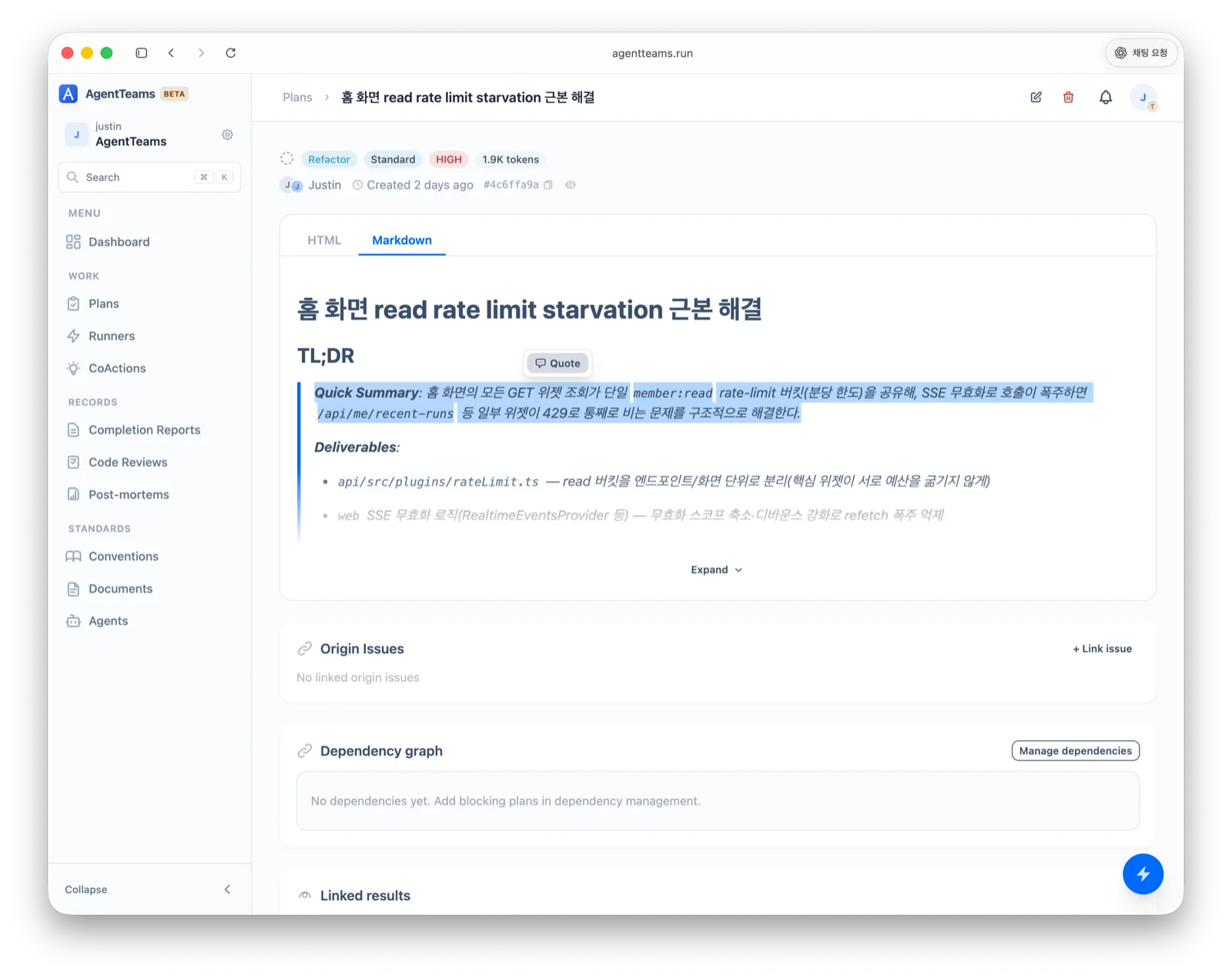
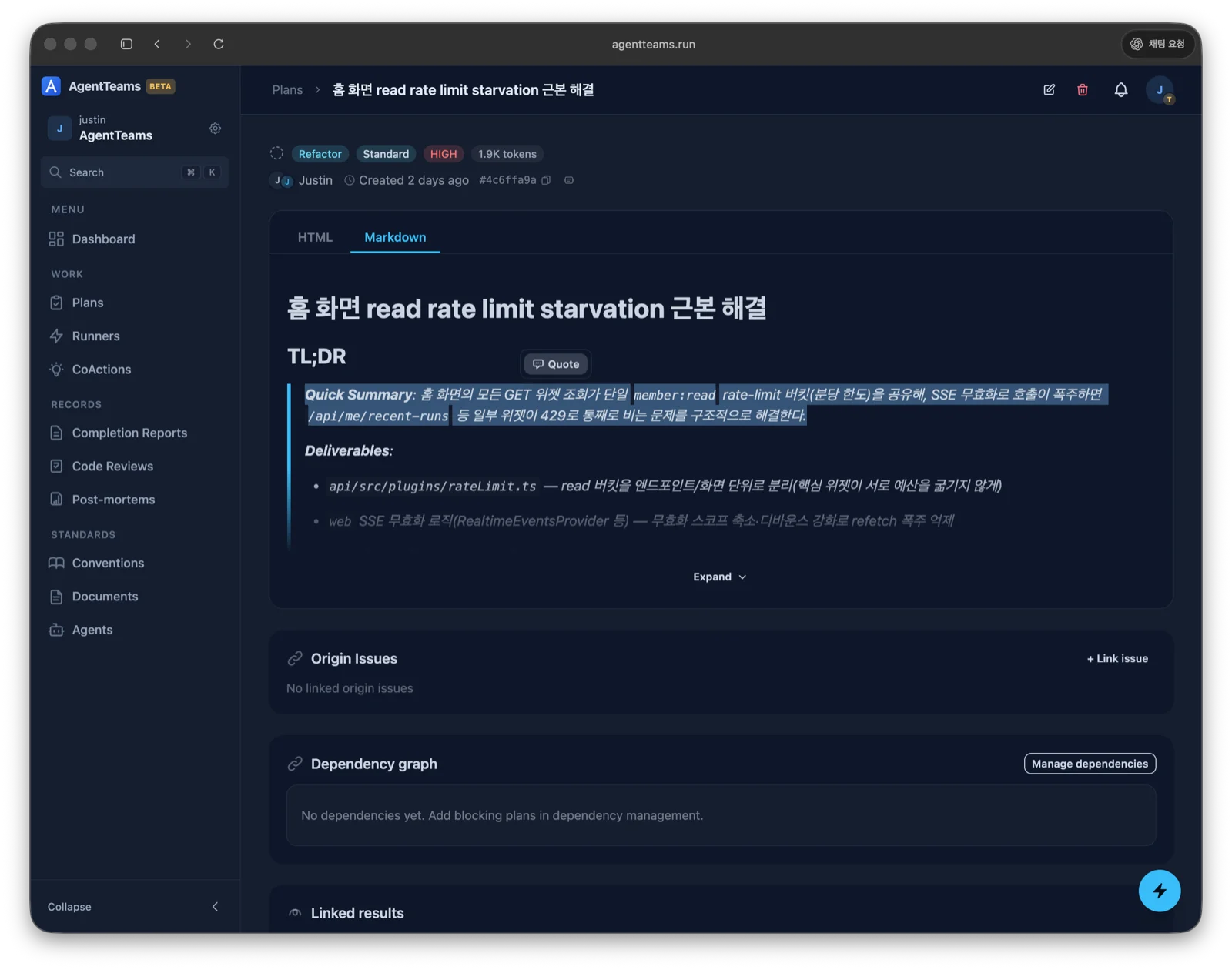
Leave comments (RISK, MODIFICATION, GENERAL) for changes; approve to start execution when it looks good.
Plan links
The plan detail connects a plan to related items.
- Origin issues — link the external issue the plan came from (GitHub, GitLab, Linear) by issue ID or URL.
- Documents — search by title to link the documents a plan draws on. Document references already in the body are linked when the plan is created; if you add or remove references by editing the body later, link or unlink them in the linked items section. From the terminal,
agentteams plan link-documentandunlink-documentmanage the same links (CLI commands). - Dependencies — set the blocking plans that must come first. Self-references, cycles, and duplicates are not allowed.
- Results — review the completion reports and post-mortems linked to the plan.
During execution — track with comments
Record findings as comments while work is in progress.
| Type | Use |
|---|---|
RISK | A risk you found (record affected files too) |
MODIFICATION | A scope change (record affected files too) |
GENERAL | A general progress note |
After completion
When the work is done, the agent writes a completion report. Your role is to review the artifacts, not write them.
- Completion Report — review the summary, verification results, and quality score.
- Co-action — if there’s implicit knowledge, follow-up work, or constraints to hand off, the agent writes one and you review the handoff.
- Post-mortem — if a reproducible/systemic failure significantly blocked the work, the agent writes one and you review the root cause and prevention.