Runner Installation
A Runner is a local executor that picks up requests and runs your configured AI agent automatically.
💡 The runner is optional. You can use AgentTeams with just the AgentTeams CLI and a local agent (Claude Code, etc.). Install a runner only if you want requests to be picked up and executed/dispatched automatically.
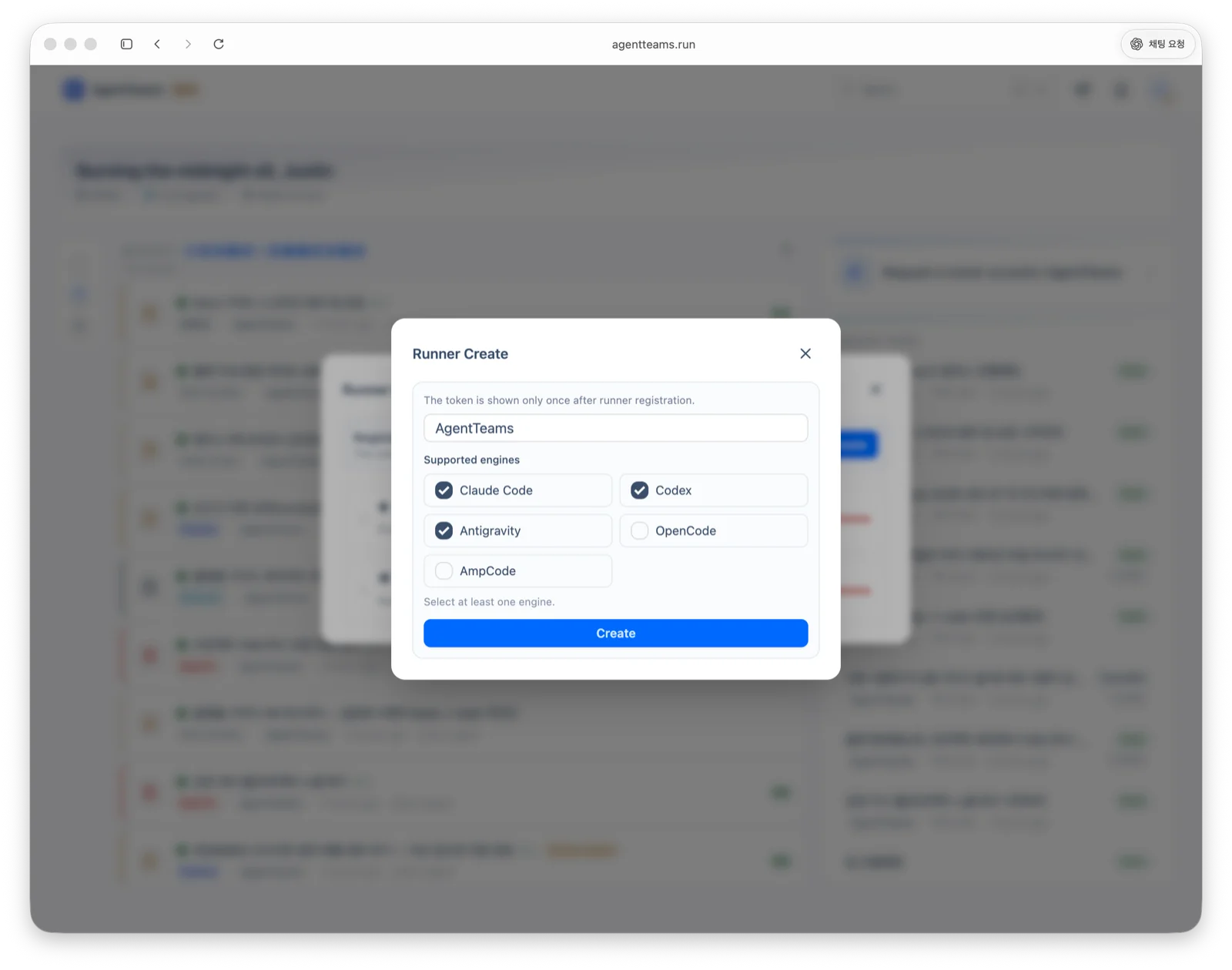
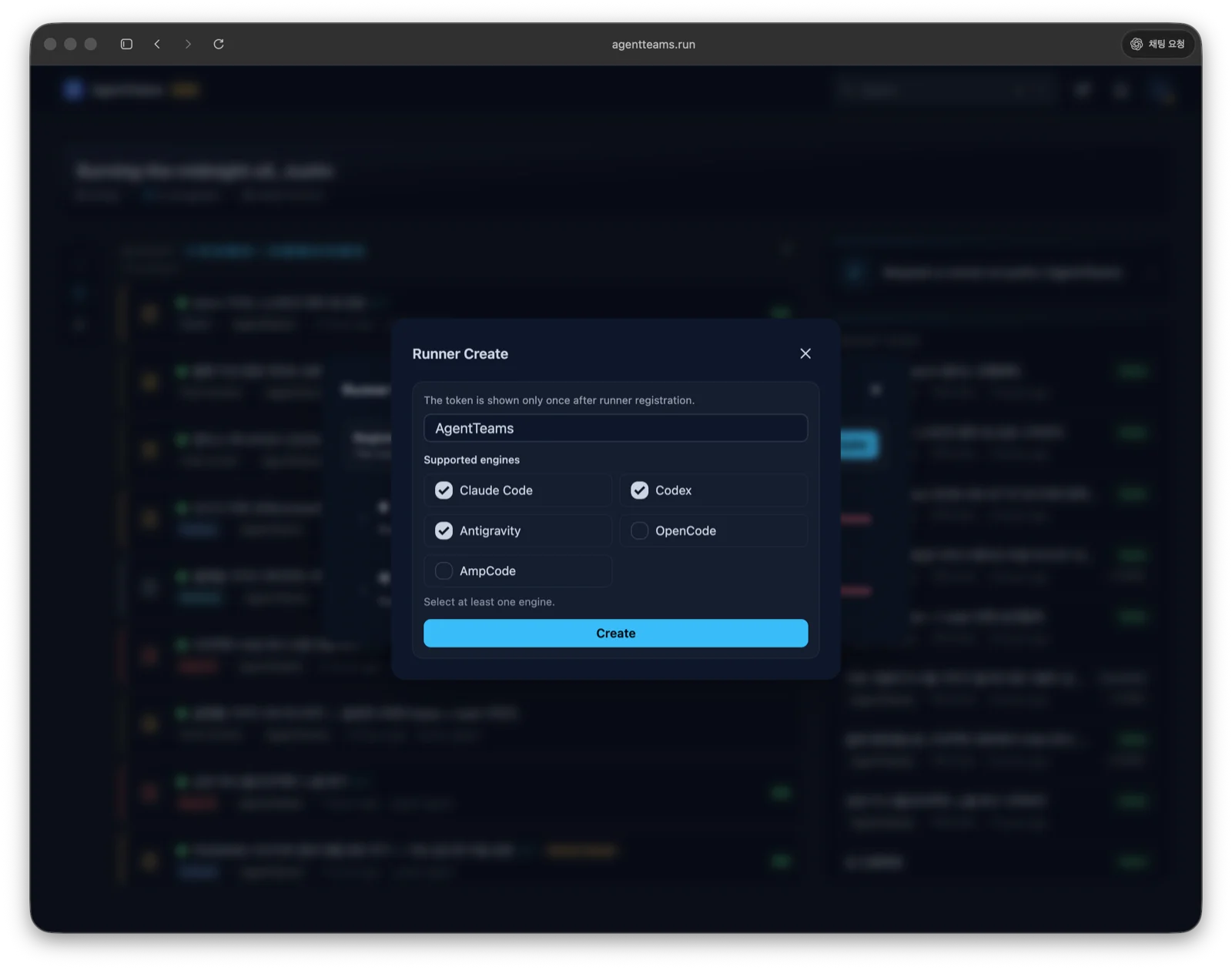
In the web app, open User Profile → Runner Management → Create Runner, then initialize the runner with the issued token.
Install & initialize
npm install -g @agentteams/runner
agentrunner init --token YOUR_TOKEN
The runner registers as an OS service (launchd on macOS, systemd on Linux, Task Scheduler on Windows) and starts automatically on login.
Supported engines
The runner executes each engine through its locally installed agent CLI. Install the CLI for the engine you want and make sure its command is available on your PATH.
| Engine | Command | Install |
|---|---|---|
| Claude Code | claude | code.claude.com/docs |
| Codex | codex | developers.openai.com/codex/cli |
| OpenCode | opencode | opencode.ai/docs |
| Antigravity | agy | antigravity.google/docs/cli-install |
| AmpCode | amp | ampcode.com |
| Copilot CLI | copilot | Install GitHub Copilot CLI |
| Cursor CLI | agent | Cursor CLI |
| Kimi CLI | kimi | Kimi Code |
| Grok Build | grok | x.ai/build |
| Kiro CLI | kiro-cli | Kiro CLI |
| Oh My Pi | omp | omp.sh |
| Muse Code | muse | dev.meta.ai |
Effort
When you pick a model in the Runner request screen, the Effort select lists only the levels verified for that model. Leaving it at Model default runs the engine CLI at its own default intensity. If the model stays at Client default, no Effort select is shown.
Per-model levels are filled in two ways.
- Auto-detected models — engines whose model listing also carries level information (Codex, OpenCode, Oh My Pi, Muse Code) refresh the levels on every detection cycle. A model without level information in the engine listing has an empty list. For engines that carry the level in the model name, such as Antigravity, that single level is read from the name.
- Manually configured models — admins tick Supported effort levels on the Runner Models screen, and individuals on My Custom Runner Models. Use this path for models you registered yourself and for engines that do not publish per-model levels (Claude Code, Copilot CLI, Grok Build). Tick only levels confirmed by official documentation or an actual run. Once you edit the levels of an auto-detected model, later detection no longer overwrites them.
An empty supported-level list does not mean the model rejects effort. It may simply be unverified, so confirm and configure it manually when needed.
When you Continue with the same model, the inherited effort is checked again against the current supported list. If the level is no longer listed, the request is rejected with Selected model does not support the requested effort level, so pick a supported level or Model default.
An Antigravity model whose name carries a level (…-low/-medium/-high) accepts only that level. Ticking or requesting a different one is rejected when you save it and when you send the request, because the Antigravity CLI errors out on an --effort that conflicts with the name.
Effort for OpenCode, Copilot CLI, Oh My Pi, Antigravity, and Grok Build is forwarded by Runner 0.0.127 and later. If you target an older runner and pick an effort level, the request is rejected with The target runner is too old to apply an effort level for this engine. Update the runner, or send the request at Model default.
| Engine | Effort | Available levels | Per-model levels |
|---|---|---|---|
| Codex | Supported | minimal low medium high xhigh max ultra | Auto-detected |
| Claude Code | Supported | low medium high xhigh max | Manual |
| Muse Code | Supported | minimal low medium high xhigh max ultra | Auto-detected (default provider models) |
| OpenCode | Supported | none minimal low medium high xhigh max | Auto-detected (varies per model) |
| Antigravity | Supported | low medium high | Auto-detected from the level in the model name. A different level is rejected |
| Copilot CLI | Supported | none minimal low medium high xhigh max | Manual |
| Oh My Pi | Supported | minimal low medium high xhigh max | Auto-detected (varies per model) |
| Grok Build | Supported | low medium high xhigh | Manual. Verified model: grok-4.6 |
| Kiro CLI | No select | — | Kiro stores its effort setting in the Kiro settings file, so it is not passed per request |
| Kimi CLI | No select | — | Follows the thinking setting in the Kimi Code settings file |
| Cursor CLI | No select | — | Pick a model whose name carries the level (…-low/-high/-xhigh) |
| AmpCode | No select | — | The mode (low/medium/high/ultra) includes the effort |
Prepare Copilot CLI
To use Copilot CLI as a Runner engine, complete installation, sign-in, and workspace trust approval under the same account that runs the Runner. Choose one of GitHub’s official installation methods for your environment.
# npm (all platforms, Node.js 22 or later)
npm install -g @github/copilot

# Homebrew (macOS or Linux)
brew install --cask copilot-cli

# WinGet (Windows PowerShell)
winget install GitHub.Copilot
After installation, start copilot once in the workspace the Runner will use and complete GitHub authentication with /login. When Copilot CLI asks whether to trust a directory, approve persistent trust only for workspaces you consider safe for repeated execution. GitHub manages Copilot subscription and organization policy; AgentTeams does not bypass either.
⚠️ For unattended execution, AgentTeams Runner invokes Copilot CLI as
copilot -p <prompt> --allow-all. This automatically approves permissions Copilot CLI needs while it works, so use it only in trusted workspaces. When isolation is needed, prefer a dedicated RunnerBox or worktree.
Prepare Cursor CLI
To use Cursor CLI as a Runner engine, install the CLI and complete authentication under the same account that runs the Runner.
# macOS or Linux
curl https://cursor.com/install -fsS | bash

# Windows PowerShell
irm 'https://cursor.com/install?win32=true' | iex

# Verify the installation
agent --version
After installation, sign in with agent login, or provide an existing CURSOR_API_KEY environment variable to the Runner service account. AgentTeams does not create, store, or change Cursor API keys, login state, authentication storage, or Cursor settings.
⚠️ For unattended execution, AgentTeams Runner invokes Cursor CLI as
agent -p --force --output-format stream-json --stream-partial-output.--forceautomatically approves permissions needed during the task, so use it only in trusted workspaces. When isolation is needed, prefer a dedicated RunnerBox or worktree.
⚠️
agentis a common command name — the Grok Build installer, for example, also creates anagentalias. Runner checkscursor-agentbeforeagent, and only launches an executable whose--helpprintsStart the Cursor Agent. If another tool namedagentcomes first in PATH, Runner skips it and keeps looking; when no candidate passes the check, the run fails with an identity-check message instead of launching the wrong tool.
Prepare Kimi CLI
To use Kimi CLI as a Runner engine, install it and complete Kimi Code authentication under the same account that runs the Runner. On Windows, install Git for Windows before the first launch because Kimi CLI uses its bundled Git Bash shell environment.
# macOS / Linux
curl -fsSL https://code.kimi.com/kimi-code/install.sh | bash

# Windows PowerShell
irm https://code.kimi.com/kimi-code/install.ps1 | iex

kimi --version
Start kimi once in the workspace the Runner will use and complete /login. Kimi Code stores authentication and configuration under ~/.kimi-code/ by default (or the directory selected by KIMI_CODE_HOME). AgentTeams does not create or inject Kimi credentials or Kimi Code settings.
⚠️ For unattended execution, AgentTeams Runner invokes Kimi CLI as
kimi -p <prompt>. Kimi’s print mode uses itsautopermission policy; keep Runner workspaces trusted and isolated with a dedicated RunnerBox or worktree when needed.
Models are detected with kimi provider list --json and registered through the approval path. There is no seeded system model list. The command only returns models for providers configured in Kimi Code, so an empty detected-model list means Kimi has no provider set up yet. Detected model names use the provider/alias form and are passed to -m unchanged at run time. Reasoning effort is not part of this detection.
Prepare Kiro CLI
To use Kiro CLI as a Runner engine, install it and complete Kiro sign-in under the same account that runs the Runner.
curl -fsSL https://cli.kiro.dev/install | bash

kiro-cli --version
Start kiro-cli once in the workspace the Runner will use and finish the browser sign-in. A browser login session is enough for unattended runs, so you do not need to provision KIRO_API_KEY. AgentTeams does not create or inject Kiro credentials or ~/.kiro/ settings.
⚠️ On macOS the installer links the executable into
~/.local/binand widens PATH by editing your shell startup file. A Runner is a non-interactive process and never reads that file, so AgentTeams Runner probes~/.local/bindirectly. If you installed elsewhere, add that directory to the PATH the Runner sees.
⚠️ For unattended execution, AgentTeams Runner invokes Kiro CLI as
kiro-cli chat --no-interactive --trust-all-tools -- <prompt>.--trust-all-toolslets the model run every tool — including file writes and shell commands — without confirmation, so keep Runner workspaces trusted and isolate them with a dedicated RunnerBox or worktree when needed.
You can pick a model in the Runner request screen (auto by default). Effort selection is not exposed: Kiro’s --effort is a value stored in ~/.kiro/settings/cli.json, so AgentTeams does not pass it per request and the effort follows your Kiro settings. See Kiro pricing for rate and credit policy.
Prepare Grok Build
To use Grok Build as a Runner engine, install it and sign in under the same account that runs the Runner.
curl -fsSL https://x.ai/cli/install.sh | bash

grok --version
Start grok once in the workspace the Runner will use and finish sign-in (grok login, or grok login --device-code on a machine without a browser). Grok stores the cached session in ~/.grok/auth.json, or under the directory GROK_HOME selects. AgentTeams does not create or inject Grok credentials, XAI_API_KEY, or ~/.grok/ settings.
⚠️ An unrelated npm package (
@vibe-kit/grok-cli) installs a binary with the same name,grok. If it is on your PATH it would otherwise win the lookup and every run would fail in confusing ways. Confirm which one you have withgrok --version— the official build reportsgrok <version> (<hash>) [stable], the npm package reports a bare version number. AgentTeams Runner defends against this on its own: it checks the official install directory ($GROK_HOME/bin, default~/.grok/bin) before PATH, and verifies the executable’s identity from its--helpoutput before reporting Grok Build as installed.
⚠️ For unattended execution, AgentTeams Runner invokes Grok Build as
grok --prompt-file <path> --cwd <path> --output-format streaming-messages-json --permission-mode bypassPermissions.bypassPermissionslets the model run every tool — including file writes and shell commands — without confirmation, so keep Runner workspaces trusted and isolate them with a dedicated RunnerBox or worktree when needed. The prompt goes through a file rather than-pbecause a prompt starting with-is otherwise parsed as a flag.
You can pick a model in the Runner request screen (grok-4.6). Selecting an effort appends --reasoning-effort <level> to the run command (low/medium/high/xhigh, verified with Grok Build 1.0.13). The Grok model listing carries no level information, so configure per-model supported levels manually on the Runner Models screen.
Prepare Oh My Pi
To use Oh My Pi as a Runner engine, install it and configure a model provider under the same account that runs the Runner. The verified version is omp/18.0.4. Pin near that version — the Pi fork moves quickly.
macOS and Linux binary install:
curl -fsSL https://omp.sh/install | sh -s -- --binaryThe default path is ~/.local/bin/omp (override with PI_INSTALL_DIR). This path does not need bun. bun install -g @oh-my-pi/pi-coding-agent requires bun ≥ 1.3.14.
Authentication stays with omp. Use environment variables such as ANTHROPIC_API_KEY or a /login session. AgentTeams does not create or inject omp credentials or ~/.omp/ settings.
⚠️ An unrelated npm package (
[email protected], 2019) installs a binary with the same name,omp. The official build reportsomp/<semver>fromomp --version(for exampleomp/18.0.4) and includesOh My Piin--help. AgentTeams Runner defends against this: it checks the official install directory (~/.local/bin) before PATH, and verifies identity from the--helpmarker before reporting Oh My Pi as installed.
⚠️ For unattended execution, AgentTeams Runner invokes Oh My Pi as
omp -p --no-session --auto-approve --approval-mode yolo --cwd <path> @<prompt-file>.--auto-approveand--approval-mode yololet the model run every tool — including file writes and shell commands — without confirmation, so keep Runner workspaces trusted and isolate them with a dedicated RunnerBox or worktree when needed. The prompt is an@fileattachment rather than a positional argument because a prompt starting with-is otherwise parsed as a flag (measured on 18.0.4).
Models are detected with omp models --json and registered through the approval path. There is no seeded system model list. omp models --json only returns a catalog when at least one provider credential is present (with no key at all it prints {"models":[]}), so an empty detected-model list means omp has no provider key yet. The reverse does not hold: being in the catalog does not mean the model is callable — omp validates neither the key nor the credit balance. Selecting an effort appends --thinking <level> to the run command (verified with omp/18.1.2). Per-model supported levels are detected together with the model information from omp models --json; a model without level information has an empty list. Subagent isolation defaults to task.isolation.mode=none, so it does not nest a second worktree inside an Orca worktree.
Prepare Muse Code
Install Muse Code and run muse login under the same account that runs the Runner. Use macOS or Linux; native Windows installation is not supported. The integration contract was verified with Muse Code 1.0.2.
curl -fsSL https://dev.meta.ai/install.sh | sh
muse login
The installation path is ${MUSE_INSTALL_DIR:-$HOME/.local/bin}/muse. For CI, set META_API_KEY or configure the key with muse auth set --api-key-stdin.
⚠️ The npm package named
museis an unrelated CMS tool. The official executable printsmuse — interactive terminal coding agentinmuse --help. Runner checks the official installation path first and verifies this marker.
⚠️ Runner invokes
muse exec --json --yolo --prompt-file <PATH>. Selecting a model and reasoning effort appends--model <ID>and--reasoning-effort <LEVEL>.--yolodisables approval prompts and the sandbox and trusts the workspace for that run, so shell commands can reach databases and other network services. Register only trusted MCP servers and use a dedicated RunnerBox or worktree.
Models are discovered through the MSP model/list request to muse serve. Approve discovered models to use them; the default model follows Muse settings. Register MCP with agentteams mcp install --client muse --scope user.
Discovered RunnerBoxes
The Runner automatically discovers linked Git worktrees in the repositories connected to it — regardless of which tool created them — and registers each as a reusable RunnerBox. There is no dependency on any specific worktree creation tool: any git worktree add (by you, an editor, or another automation) is picked up on the next successful poll.
- The Runner only scans repositories connected to AgentTeams. It never searches your home directory or the whole machine.
- The default checkout is excluded (it overlaps the existing run path); only linked worktrees are registered.
- Discovery is read-only. The Runner never runs
git worktree prune/removeand never deletes directories or branches. - A valid worktree is
AVAILABLE. A worktree that disappears from a successful listing (removed externally, orprunable) becomesMISSING. A failed Git lookup preserves the existing state instead of falsely marking entries missing. - Local paths stay on the owning Runner. They are never sent to the server or shown in the web UI; a discovered RunnerBox always runs on the machine that owns it.
Discovered worktrees are external: AgentTeams treats them as read-only and never owns their lifecycle. Removing a MISSING discovered RunnerBox from the management screen deletes only the AgentTeams registry entry — your local Git worktree directory, branch, and past run history are left untouched.
Status & lifecycle
agentrunner status       # check active state / autostart registration
agentrunner stop         # graceful shutdown
agentrunner uninstall    # stop + remove autostart + clean up
If autostart is registered, the OS may restart the runner after
stop. Useuninstallto fully remove it.
Next steps
Once installed, see Runner Requests for usage — sending requests, tracking status, and multi-runner setups.