Documents
Documents are project-level Markdown documents meant for human readers. Unlike plans, completion reports, and co-actions, they are not tied to one fixed workflow. Use them for onboarding notes, design memos, user guides, operating procedures, research notes, and other knowledge that should remain easy to find.
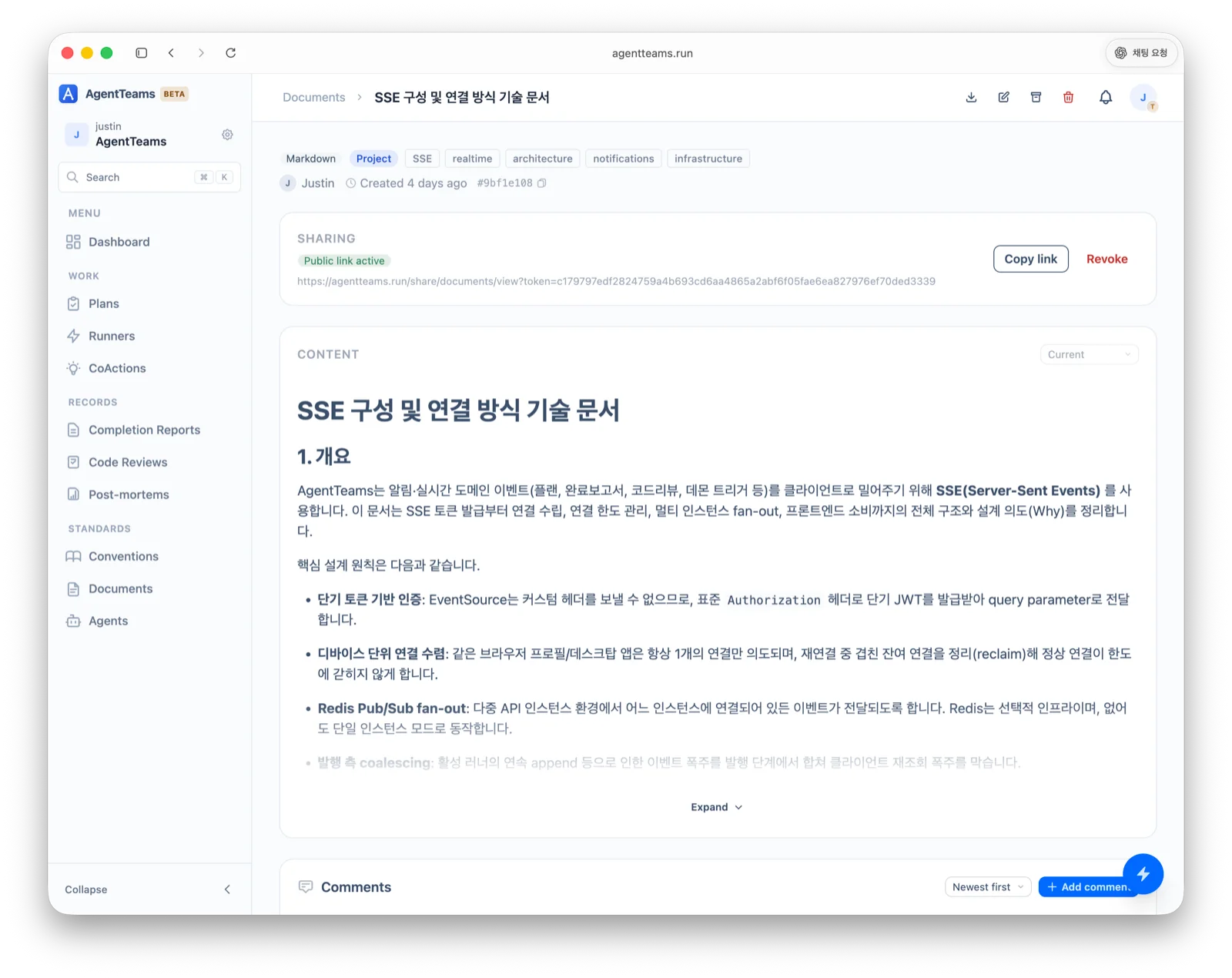
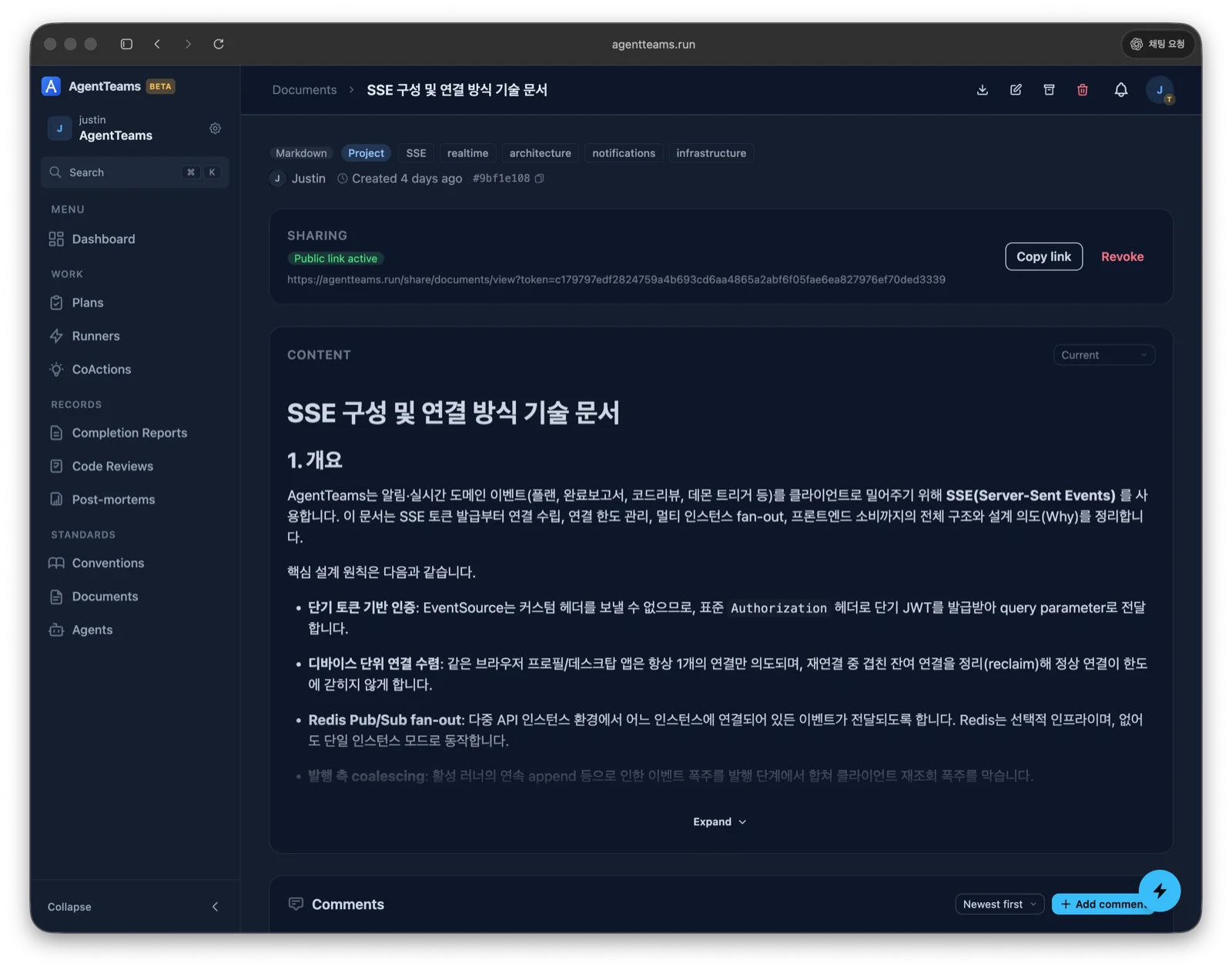
The detail view shows the tags, share link, content, and comments together.
When to use documents
| Situation | Why documents help |
|---|---|
| Onboarding material | New members or new agent sessions can understand project context quickly. |
| Design notes | Preserve decision background and alternatives that do not belong directly in code. |
| Repeated procedures | Keep release, verification, and incident-response steps in one place. |
| Shareable writing | Create a public link and revoke it when sharing is no longer needed. |
| Collaborative review | Comment on the document and track revision history while editing. |
Plans describe “what should be done.” Completion reports describe “what was done.” Co-actions hand context to the next session. Documents preserve human-readable knowledge that does not fit those workflow records.
Create a document in the web app
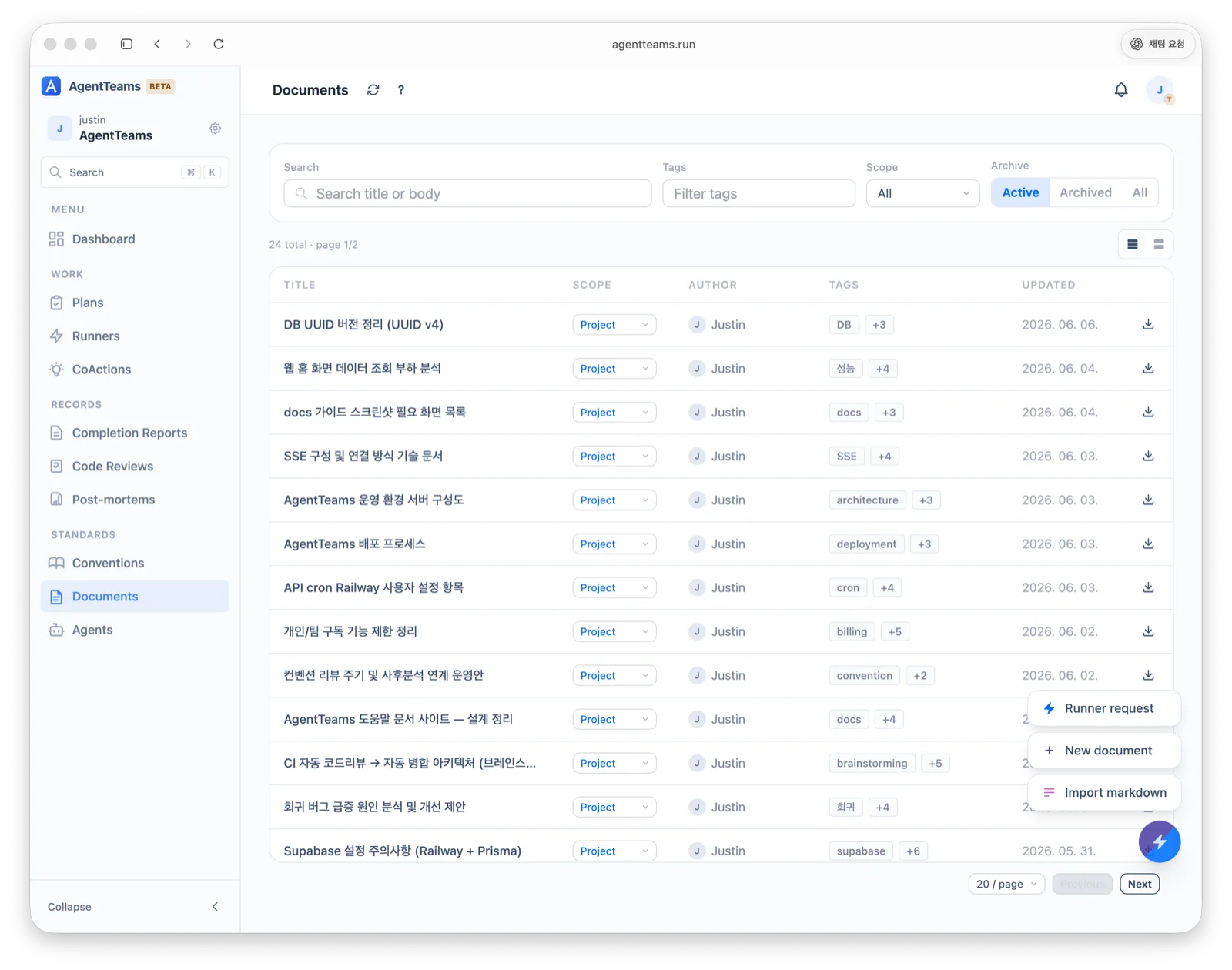
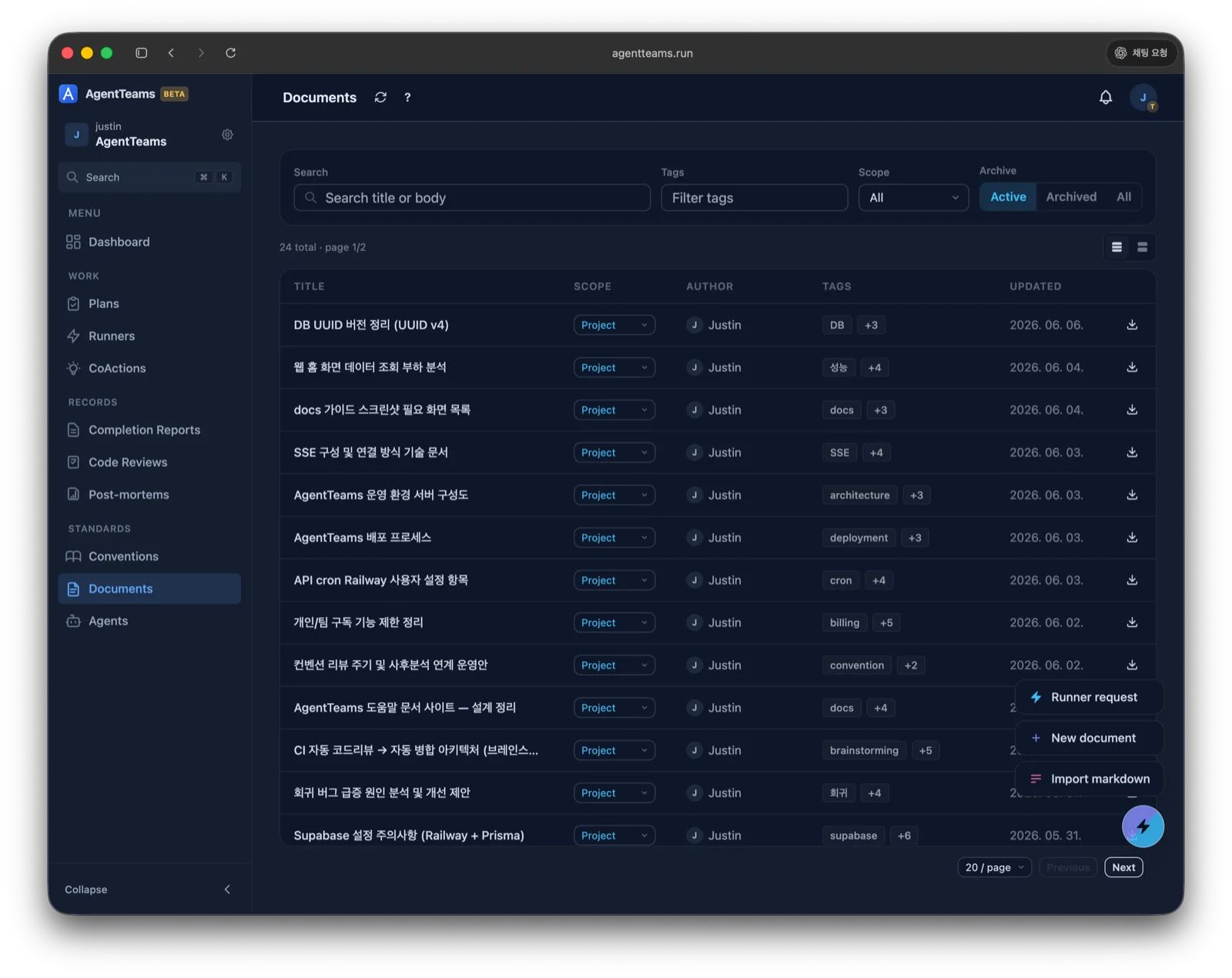
Open Documents from the web sidebar, then select New document.
- Enter a title.
- Add comma-separated tags, such as
onboarding, release. - Choose visibility.
- Write Markdown content or import a Markdown file.
- Save the document.
The list page supports title/body search, tag filtering, visibility display, and archive-state filtering.
Attachments
On a project document detail page, you can attach image, PDF, text, Markdown, and HTML files, plus macro-free Word (.docx), PowerPoint (.pptx), and Excel (.xlsx) files. Office formats are supported only on document attachments. Macro-enabled formats (.docm, .pptm, .xlsm) and legacy formats (.doc, .ppt, .xls) are not supported.
Attachments also accept code and data files as text, on documents as well as runner requests, code reviews, and completion reports, such as .sql, .csv, .json, .yaml, .xml, .log, .diff, and source files like .ts, .py, .go, and .java. Scripts that run directly when opened (.js, .sh, .ps1, .bat, .cmd) are not supported.
Files that commonly hold secrets can’t be attached anywhere, even with .txt, .md, or .log added to the name: .env files (except .env.example, .env.sample, and .env.template), private keys and certificates (.pem, .key, .p12, .pfx, .jks, .keystore, .ppk, id_rsa, id_ed25519, and similar), and credential files such as .npmrc, .pypirc, .netrc, .pgpass, .git-credentials, and .htpasswd.
Images, PDFs, text, Markdown, and HTML can be previewed in the app. Office files cannot be previewed, so download them to view their contents. An uploaded file appears immediately in the list below the document body, and files uploaded by mistake can be deleted from the document detail page. Each file can be up to 10MB, with up to 10 attachments per document.
Attachments belong to the document’s current state and are not part of document revision history. The same attachment list is available as read-only content in the Home activity panel.
Linked plans
The Linked plans section on a document detail page lists the plans that link this document, each with its status. Select a plan to open its detail page. Plans you do not have access to are not shown.
Links are created and removed from the plan side. See Plan links for how. From the terminal, agentteams document list-plans --id <documentId> returns the same list.
Visibility and archive state
| Item | Meaning |
|---|---|
PROJECT | A document visible to project members. |
PRIVATE | A document visible only to its owner and the members the owner shares it with. |
| Active | A document shown in the normal list. |
| Archived | A document kept for history but separated from the active list. |
If a document is no longer used often but should remain as a record, archive it instead of deleting it. Archived documents can be unarchived later.
Share with specific members
A private document can be opened to selected project members without changing its visibility. Only the document owner (the member who created it) can choose who it is shared with.
- On the document detail page, select Share with members next to the visibility badge. If you have already shared the document, it shows Shared with N members instead.
- Select a member and click Share.
- Check the members you shared with, and when, in the Shared with list.
Members you share with can only view the document. Editing the body, archiving, deleting, changing visibility, and managing who it is shared with remain limited to the owner.
Runners and agents of the members you share with can also read the document, because an agent acts with the permissions of the member who registered it. If the document contains content that should not reach runner work, check it before sharing.
When another member requests work on a runner you shared, that work reads only the private documents both of you can view. Private documents it creates are saved as yours and shared automatically with the member who requested the work. They appear in the Shared with list as Shared automatically by a runner run, and you can remove that access like any other share.
Remove access
In the Shared with list, click Remove access next to a member. From that moment, the member and their runners and agents can no longer open the document. To allow access again, share it again.
When a member leaves or is removed from the project or team, their shared access is removed automatically. Rejoining does not restore it.
Changing the document to Project visibility also removes individual shares. If you switch it back to Private, share it again with the members who should have access.
Approve an access request
In the Approval Inbox, review a private document access request, choose Allow only the requester or Publish to the project, and select Approve. Allowing only the requester keeps the document private and gives that person read-only access.
How this differs from share links
A share link hands a document to readers outside the project. Sharing with specific members opens a private document to only some members inside the project.
| Item | Share with specific members | Share link |
|---|---|---|
| Who can view | The members you shared with, and their runners and agents | Anyone with the link |
| Documents | Private documents | Any document, regardless of visibility |
| Removing access | Per member | The whole link at once |
Revisions and restore
Edits create revision history. You can open previous revisions, inspect their content, and restore a selected version. Restoring does not erase the current content silently; the restore is preserved as a new revision.
Revision restore is useful when:
- a bad edit needs to be rolled back
- an older operating procedure must be checked
- a design note changed several times and you need to trace the path
Share links
Documents can have share links. When sharing is active, copy the link and send it to another reader. Revoke the link when it should no longer be accessible. The shared document page shows author, visibility, archive state, and attachment information. Anyone with the share link can also download attached files; revoking the share prevents that link from accessing both the document and its attachments.
Before sharing, check that the document does not include secrets, tokens, or internal-only URLs.
Comments
The document detail page supports comments. Select text in the body and click Quote to include that text in the comment. Comments can be sorted newest-first or oldest-first, and your comments can be edited or deleted.
Writing tips
- State the document purpose in the first paragraph.
- If the content belongs in a plan, report, or co-action, use that workflow instead.
- Add tags to documents that will be referenced repeatedly.
- Before public sharing, check for secrets, tokens, and internal URLs.
- When the reason for a change matters, leave context in the body or a comment.